01 · Build
Sizes, learned
Output sizes come from a trial call on zero inputs when the model is built. After that they stay fixed for the run.
Some of a model is never going to be a block. Write it in C or Python, wire it onto the
canvas, and it runs every step like anything else there: it reads its inputs, runs your
compute(), and writes its outputs.
/* Slew-rate limiter: the output chases u[0]
   at no more than 2 units/s. */
void compute(double t, const ICoreCMatrix* u, int uCount,
             ICoreCMatrix* y, int yCount) {
    /* statics persist between steps, reset every run */
    static double last = 0.0, tPrev = 0.0;
    (void)uCount; (void)yCount;
    double step = 2.0 * (t - tPrev);
    double d = ICORE_AT(u[0], 0, 0) - last;
    if (d >  step) d =  step;
    if (d < -step) d = -step;
    last += d;
    tPrev = t;
    y[0].rows = 1;
    y[0].cols = 1;
    ICORE_AT(y[0], 0, 0) = last;
}
import numpy as np

def compute(t, u, state):
    # Slew-rate limiter: the output chases u[0]
    # at no more than 2 units/s.
    last = state.get("last", 0.0)
    step = 2.0 * (t - state.get("t", 0.0))
    d = float(np.clip(u[0][0, 0] - last, -step, step))
    state["last"], state["t"] = last + d, t
    return [np.array([[last + d]])]
One limiter written twice,
once for each block. A unit step arrives at 0.5 s, and each lane's compute() is
called once per 0.1 s sample: one dot per call. For this page, the C body was compiled against the
block's own prelude and the Python body run with numpy, and the two agree at every sample. State
lives in a C static or in Python's state dict, and both are reset at every
simulation start.
Each block calls a single compute() of yours. Everything it needs arrives
as arguments, and everything it produces goes out through the output ports.
| C Code | Python Code | |
|---|---|---|
| Signature | void compute(double t, const ICoreCMatrix* u, int uCount, ICoreCMatrix* y, int yCount) | def compute(t, u, state): |
| Inputs | u[0] … u[uCount-1], read-only, row-major; element (i, j) is ICORE_AT(m, i, j) | a list of numpy matrices, one per input port, in canvas order |
| Outputs | set y[i].rows and .cols, fill .data (room for 4,096 doubles) | return a list, one entry per output port; float, int or bool all work |
| Memory | static variables, reset at every simulation start | the state dict, persisting between steps |
| Port types | each matrix's read-only kind: floating, integer, boolean, string or bus | each array's own dtype; a String port arrives as a str |
| Runs on | your system C compiler, loaded in-process; math.h, stdlib.h, string.h pre-included | the Python inside ICore Blocks, with numpy |
Both blocks start with one input and one output, and you can change both counts. Every port is a double unless you retype it, and the new type reaches your code without anything extra to declare.
Once it's on the canvas, the solver treats your code the way it treats a library block.
Output sizes come from a trial call on zero inputs when the model is built. After that they stay fixed for the run.
C statics are re-zeroed and the state dict starts empty at every simulation start.
The compiled library is cached by its source text, so the build does not compile the same code twice.
compute() runs at the block's Sampling Time, or at the solver's rate when that is zero
or less. It is stepped, never integrated.
A compile error, or a Python exception, is reported with the block's path and stops the run.
Hand-written C can't be translated mechanically, and none of the other targets can carry a Python interpreter. So each block exports to the one language it's written in, and refuses the other nine by name rather than emitting code that won't run.
| Block | C | C++ | Rust | Python | MATLAB | Java | VHDL | Verilog | SV | PLC ST |
|---|---|---|---|---|---|---|---|---|---|---|
| C Code | ✓ | - | - | - | - | - | - | - | - | - |
| Python Code | - | - | - | ✓ | - | - | - | - | - | - |
Your code goes into the generated C core as written. Each block's compute is renamed,
so several C Code blocks can share one export.
Your function is embedded, indented, into the generated Python module, so the exported model carries your code as written.
The blocks cross to Simulink's C Function and Python Code blocks. The wiring survives, and your source moves into their Output Code. The two contracts differ, so the code needs adapting on the other side. The MATLAB bridge →
If a subsystem has to reach an FPGA, keep hand-written code out of that subtree. Or, once the code settles, promote it to a real block with its own code for every target. That's what the Block Wizard is for.
The source you type is stored in the model itself, in the project file and in the diagram's recipe text. A model with user code in it is still one file to save, share, script, or hand to an agent.
toolchain set cc <path>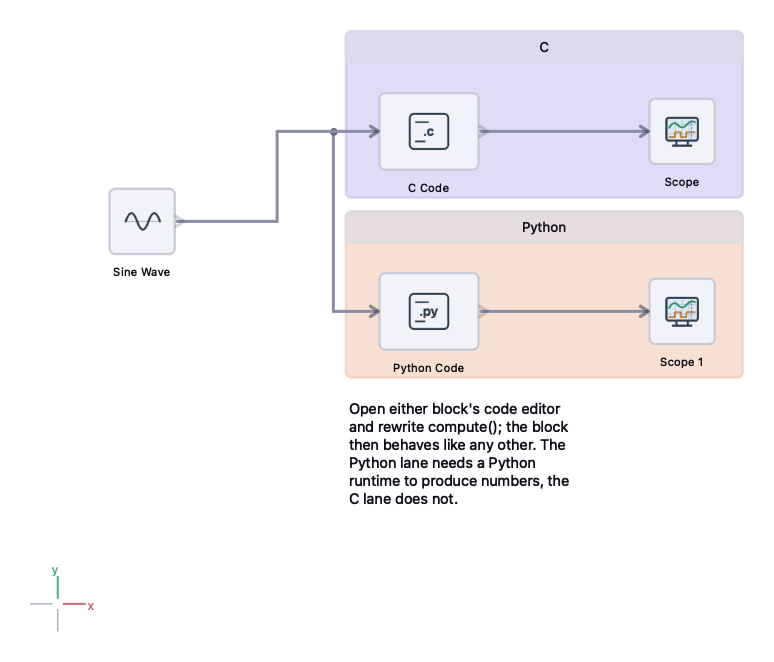
In the documentation: C Code · Python Code · Toolchains · Templates
See also: Block Wizard - your own library · Code export
Download the application from the customer portal, or read the documentation first - the manual, a page for every block, and the full command reference are public.